Connect Taxgenii to Claude Desktop, enable its tools in a chat, and review a tool request before allowing it.
This guide also explains the MCP Dashboard controls for keys, model settings, and manual clients.
TABLE OF CONTENTS
- 1 Feature Overview
- 2 Open the MCP Dashboard
- 3 Copy the Claude Connector URL
- 4 Add Taxgenii in Claude Desktop
- 5 Enter the Connector Details
- 6 Confirm Authentication
- 7 Connect Your Taxgenii Account
- 8 Enable Taxgenii in a Chat
- 9 Send a Request and Allow the Tool
- 10 Manage the MCP Key
- 11 Configure Taxgenii Models
- 12 Use a Custom API Key
- 13 Manual Client Connection
- 14 Available MCP Tools
- Guide Scope
1 Feature Overview
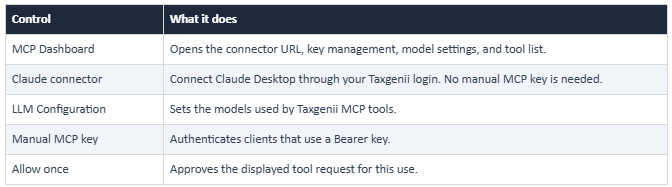
2 Open the MCP Dashboard
Sign in to Taxgenii. In the left sidebar, click MCP Dashboard.
URL: https://taxgenii.lodgeit.net.au/chat
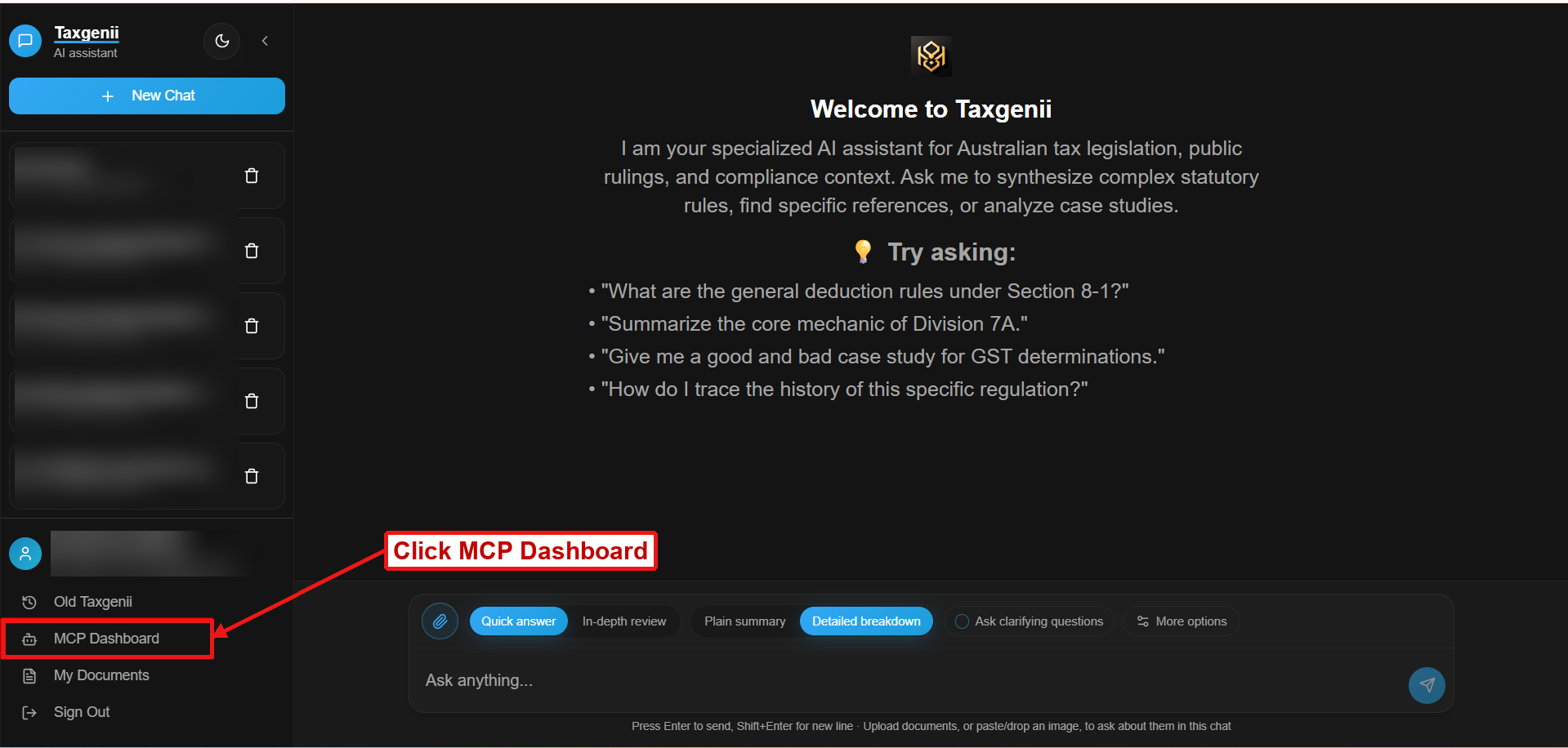
Figure 1 Open MCP Dashboard from the Taxgenii sidebar
3 Copy the Claude Connector URL
In Add as a Connector, click the copy icon beside the URL. Use this URL in Claude Desktop. This sign-in method does not require the manual MCP key.
https://api.taxgenii.lodgeit.net.au/mcp/sse
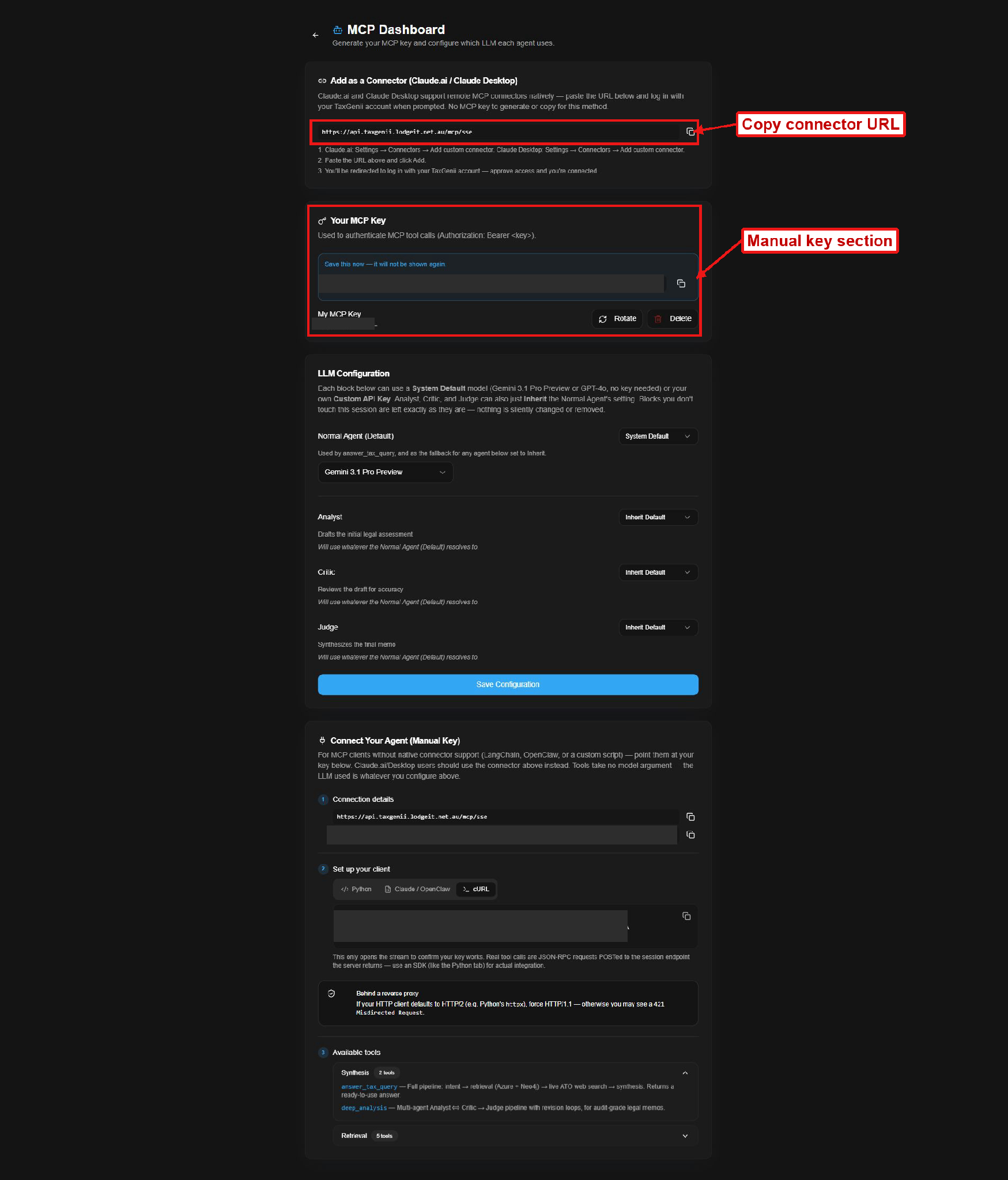
Figure 2 Copy the URL from the connector section
4 Add Taxgenii in Claude Desktop
Open Claude Desktop Settings, then select Connectors.
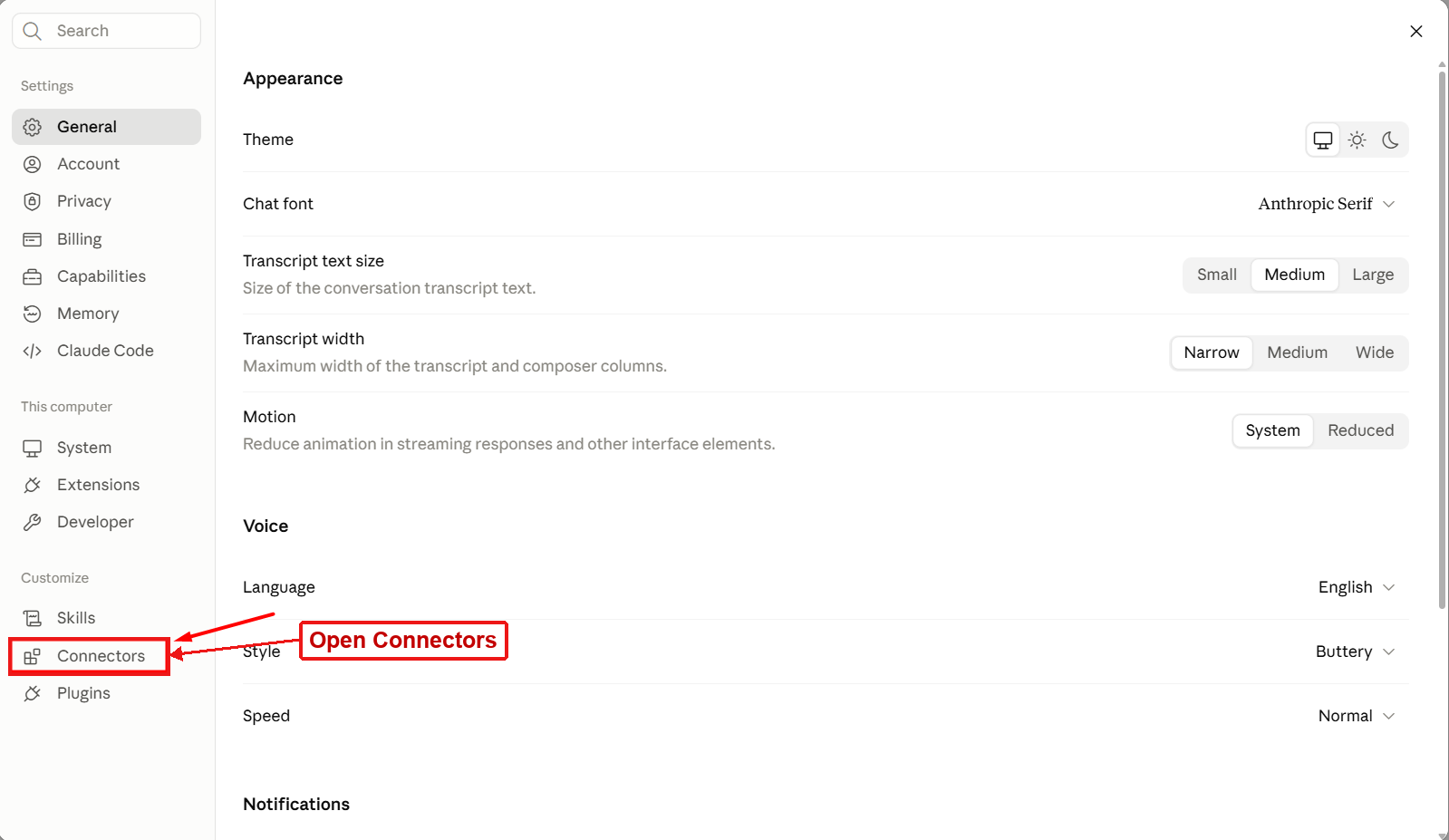
Figure 3 Select Connectors in Settings
Click Add, then choose Add custom connector.
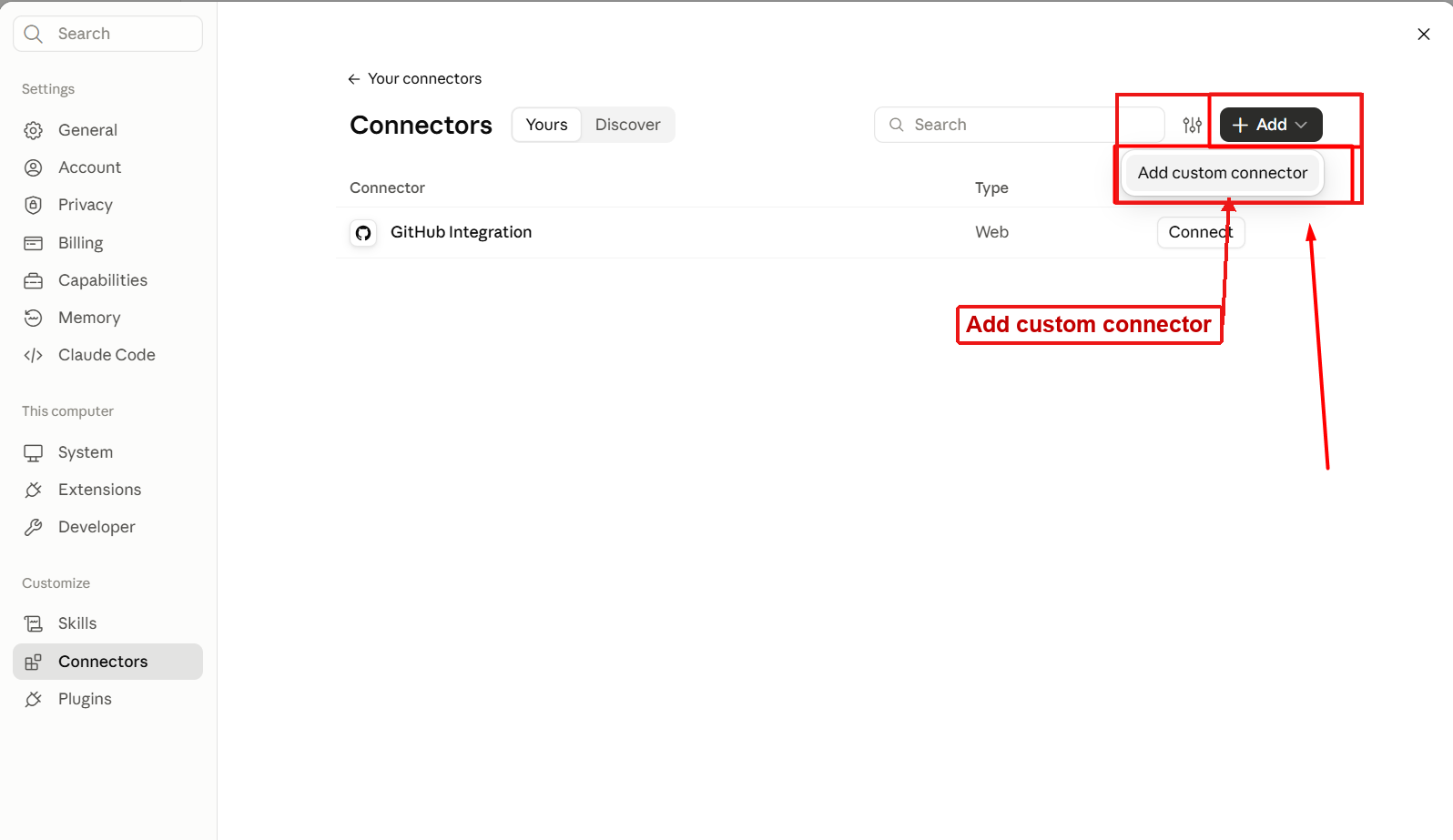
Figure 4 Choose Add custom connector
5 Enter the Connector Details
Name identifies the connector in your list. MCP server URL tells Claude where to connect.

Click Continue. Do not enter your MCP key in either field.
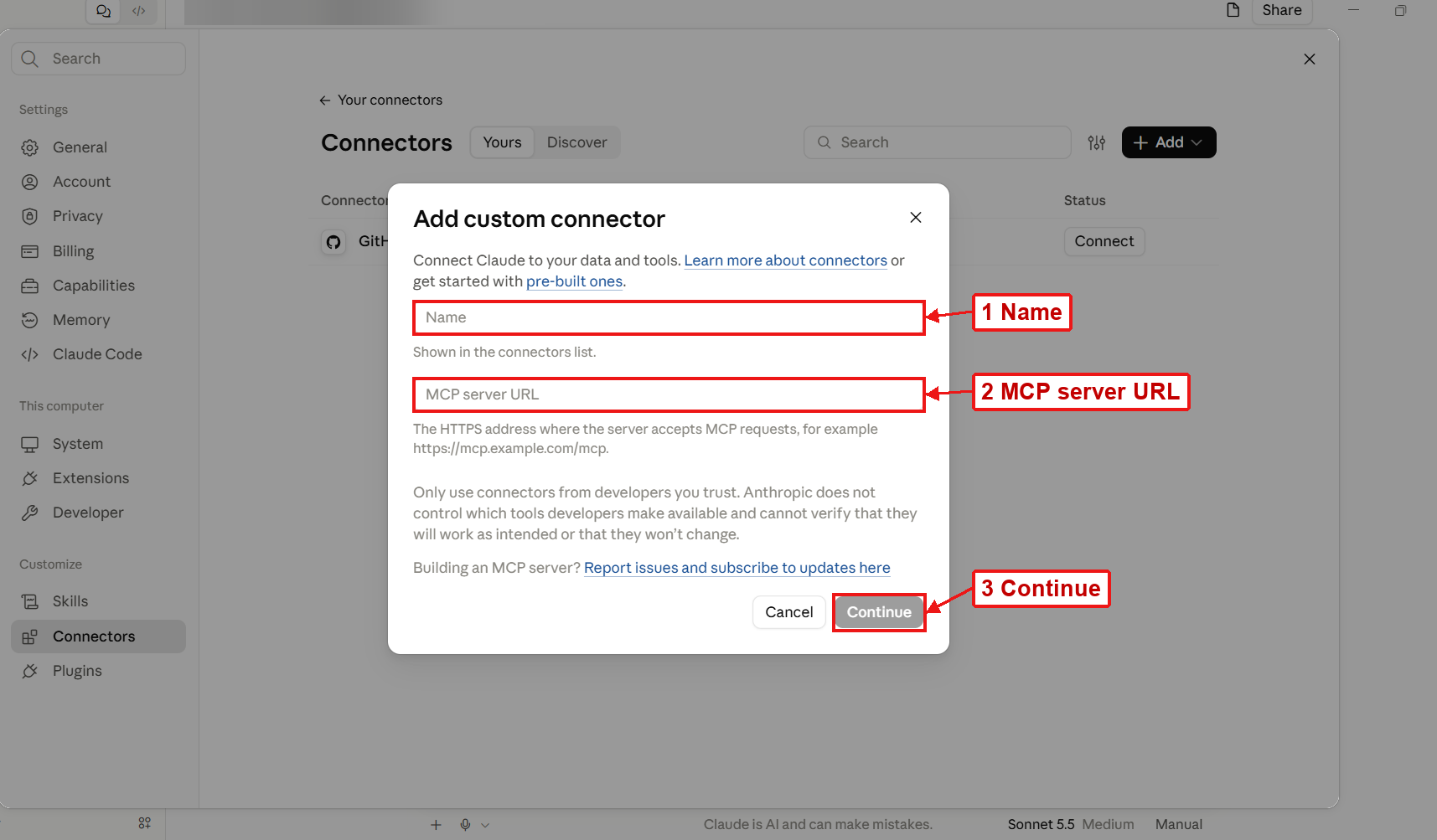
Figure 5 Enter the connector name and server URL
SSE Notice
Claude may show a notice that SSE transport is being deprecated. For this walkthrough, keep the URL supplied by Taxgenii and click Continue. The notice is not a connection success message.
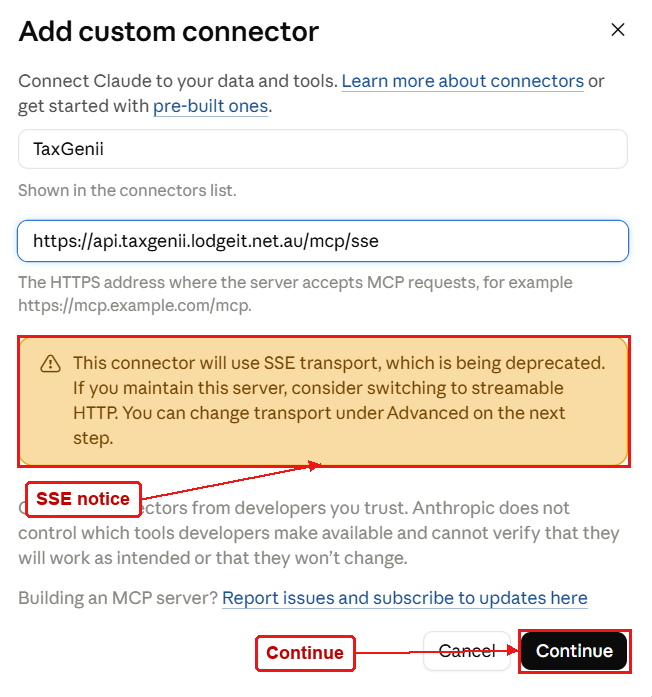
Figure 6 Continue after reviewing the SSE notice
6 Confirm Authentication
Keep Sign in now and Register automatically, as detected in this walkthrough. Then click Add. No custom OAuth client details were needed for this setup.
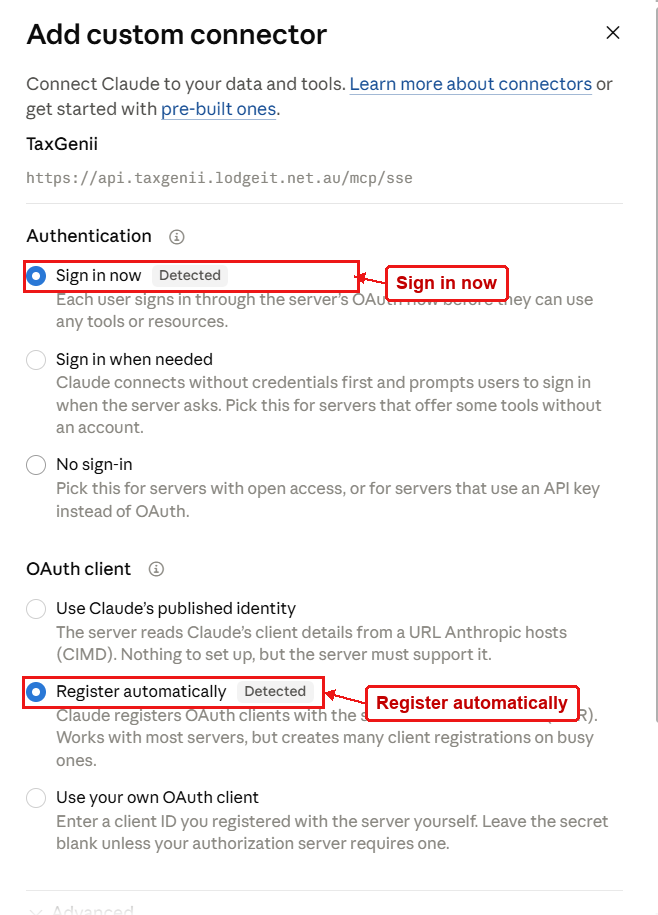
Figure 7 Keep the detected sign-in and OAuth client options
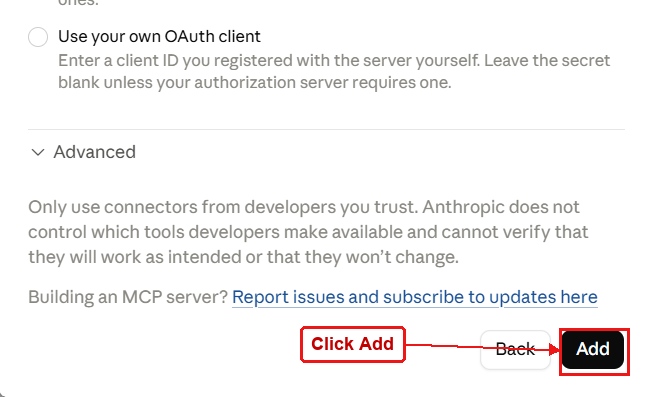
Figure 8 Click Add at the bottom of the form
7 Connect Your Taxgenii Account
Click Connect. Verification opens in your browser. Continue the connection there and sign in to Taxgenii when prompted.
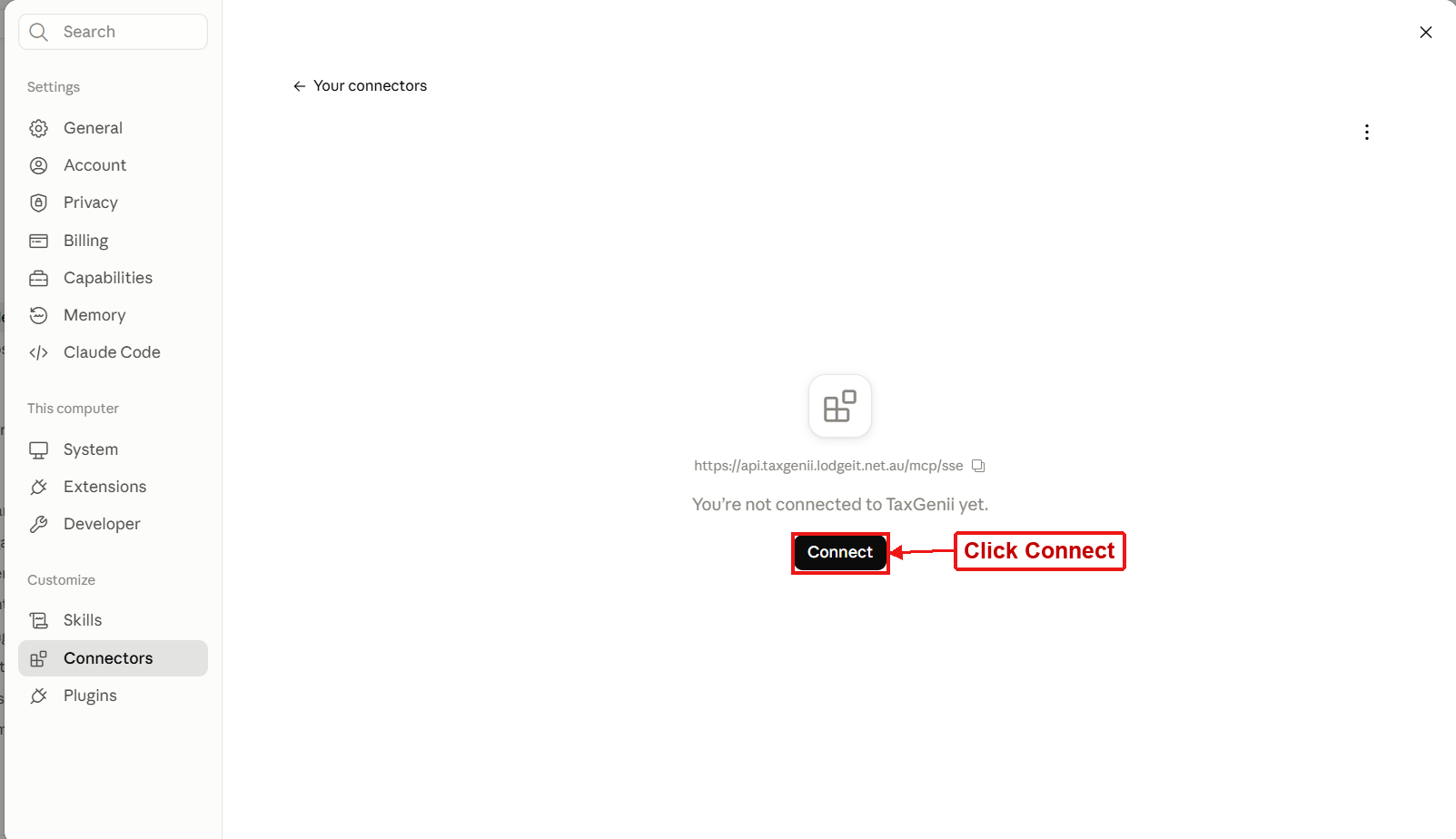
Figure 9 Start the account connection
Return to Claude Desktop. A check mark beside TaxGenii shows the connection is complete.
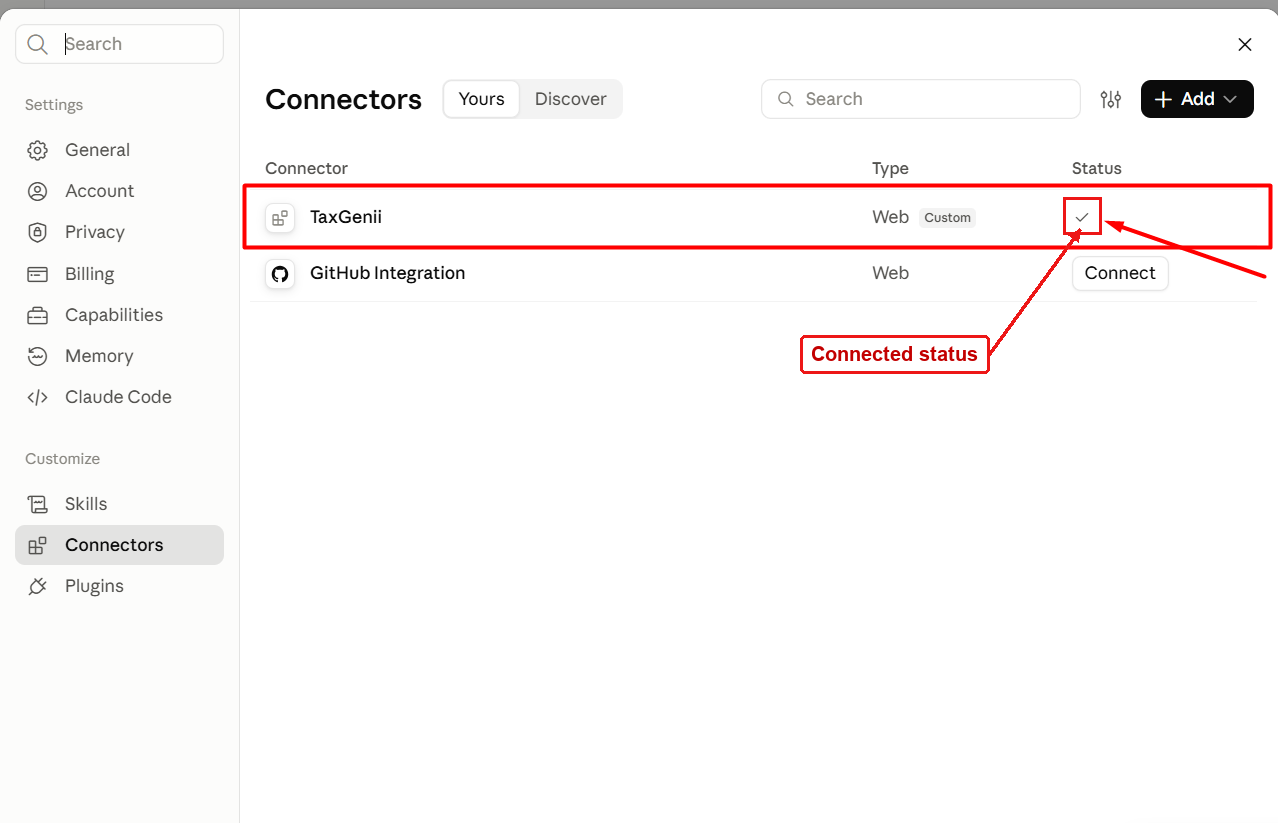
Figure 10 Check the connected status
8 Enable Taxgenii in a Chat
Open a new chat. Click the plus button, then Connectors. Keep the TaxGenii toggle on; blue indicates it is enabled for this chat.
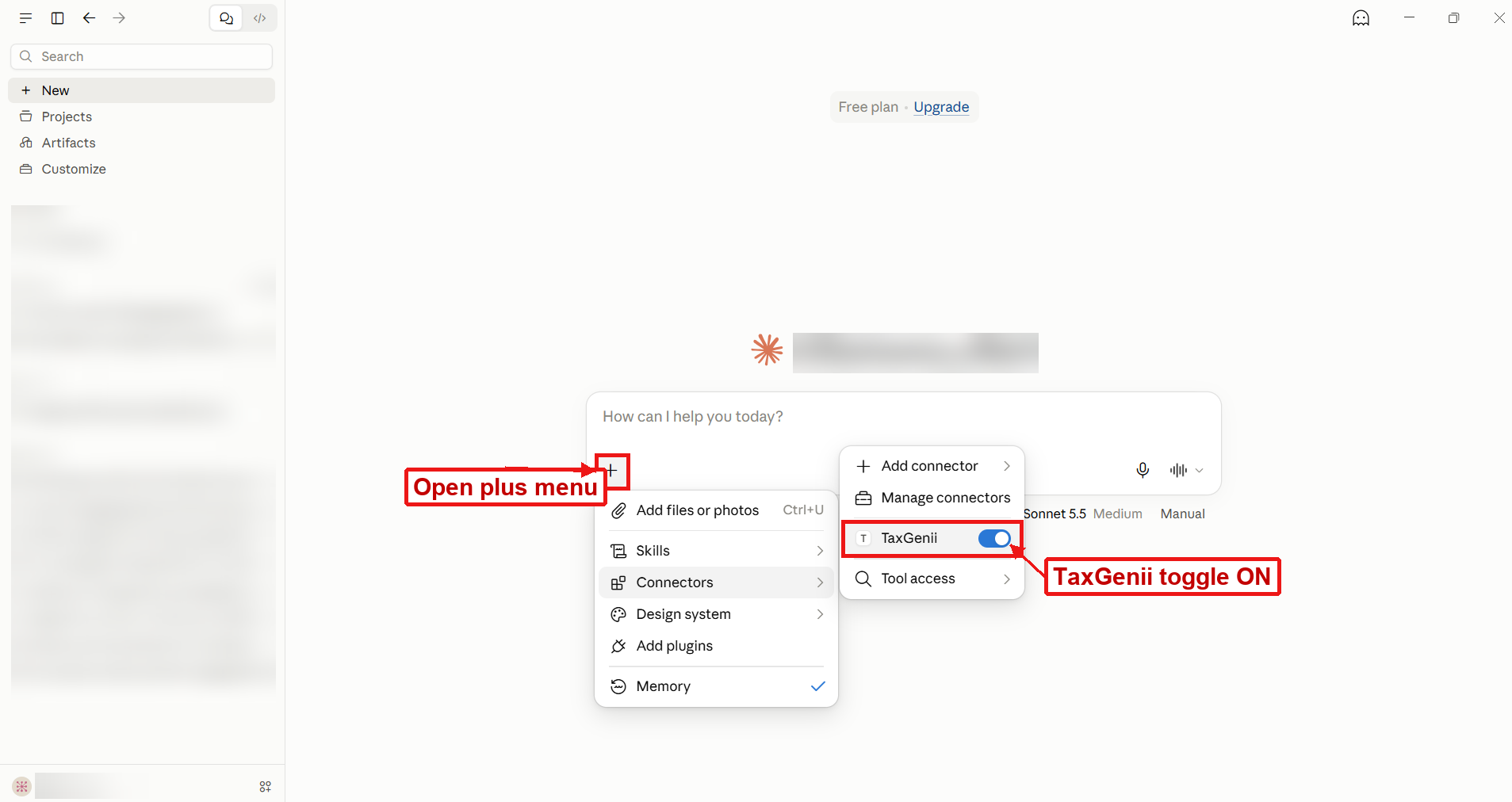
Figure 11 Enable TaxGenii from the chat connector menu
9 Send a Request and Allow the Tool
Example prompt: Use TaxGenii’s answer_tax_query tool to explain the general purpose of Division 7A in simple terms.
Review the tool name, connector, and query. Click Allow once to approve this request. Decline rejects it; Always allow is a broader permission choice.
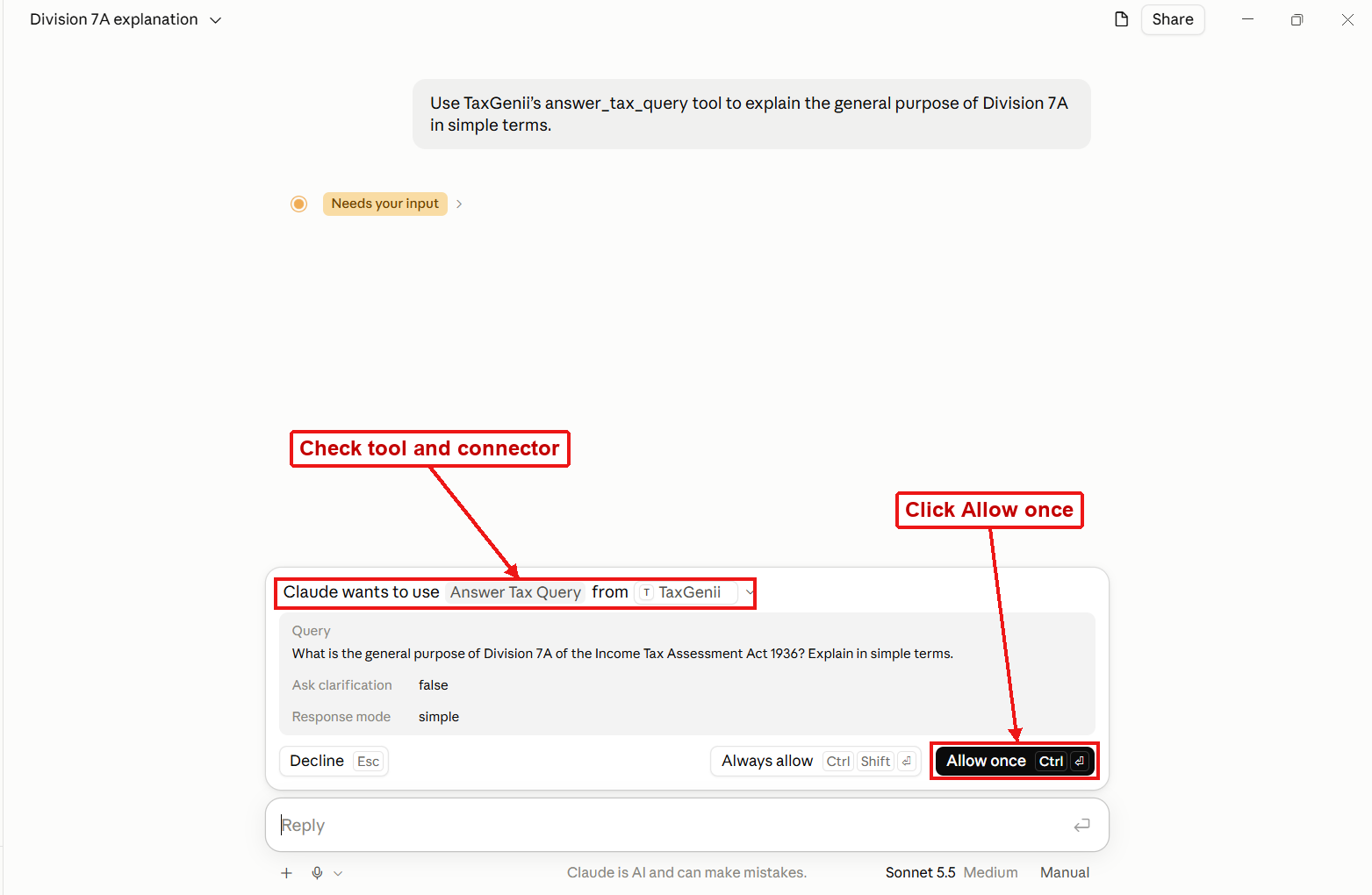
Figure 12 Review the request and click Allow once
10 Manage the MCP Key
This section is for clients that use a manual key. Before a key exists, Generate MCP Key creates one. Copy and save it when shown; the page says the full key will not be shown again.
The copy icon copies the displayed key. Rotate replaces the key; update clients that use it. Delete removes the key. Treat these as access controls, not routine setup buttons for the Claude connector.
Figure 13 The manual key controls are separate from the Claude connector
11 Configure Taxgenii Models
Normal Agent supplies the model for answer_tax_query and for agents set to Inherit Default. Analyst drafts the assessment, Critic reviews it, and Judge prepares the final memo.
System Default uses a supplied model without your own provider key. Inherit Default follows Normal Agent. Custom API Key uses your provider credentials. Click Save Configuration to apply completed edits.
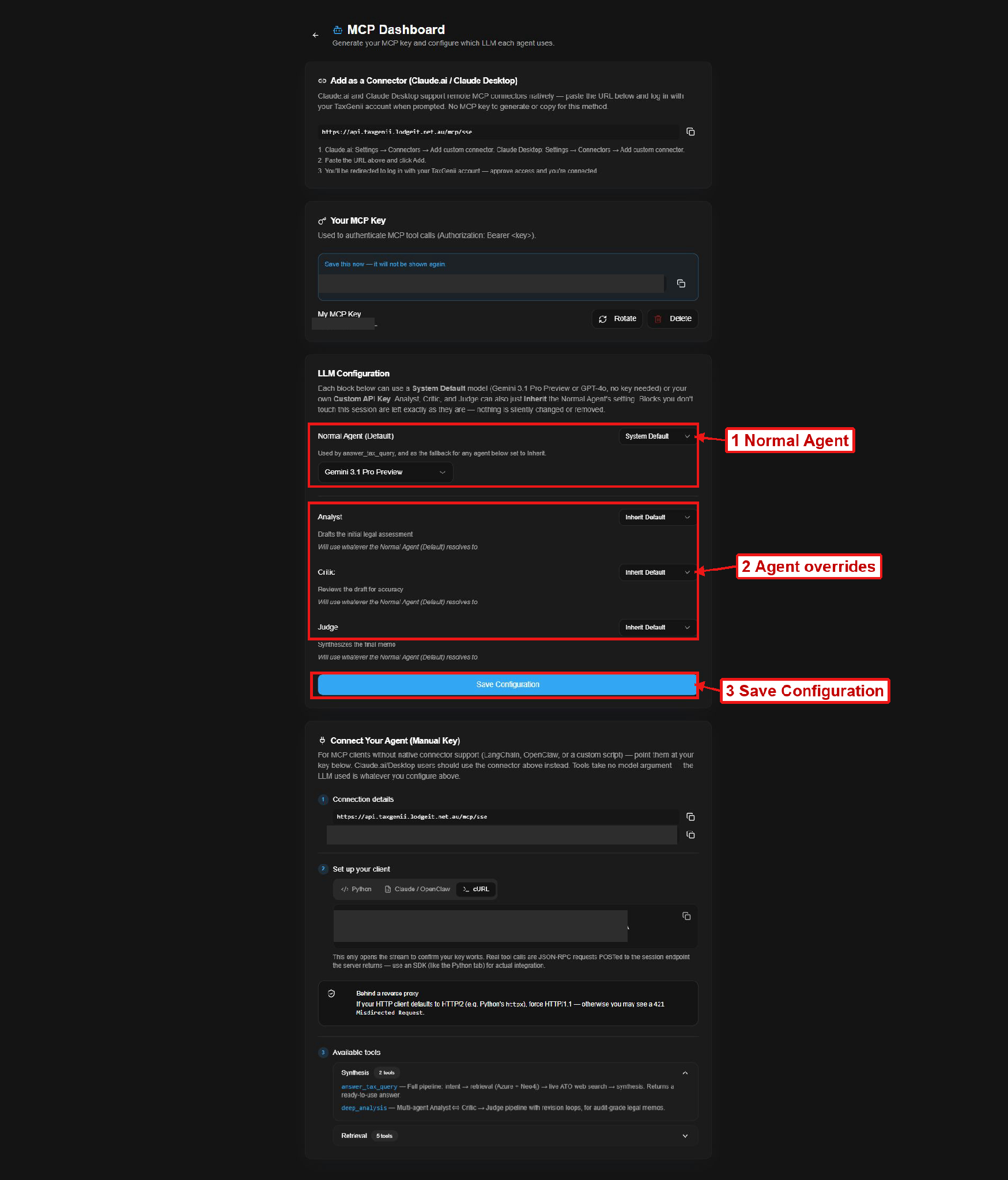
Figure 14 Set the Normal Agent and optional agent overrides
12 Use a Custom API Key
Choose Custom API Key for the agent, select the provider, enter that provider’s API key, and click Check Key. Complete verification for every edited block before saving. The provider key is different from your Taxgenii MCP key.
Observed providers: OpenAI, Anthropic, Google Gemini, Grok (xAI), and DeepSeek. The System Default model menu offered Gemini 3.1 Pro Preview, GPT-4o, and DeepSeek V4 when inspected.
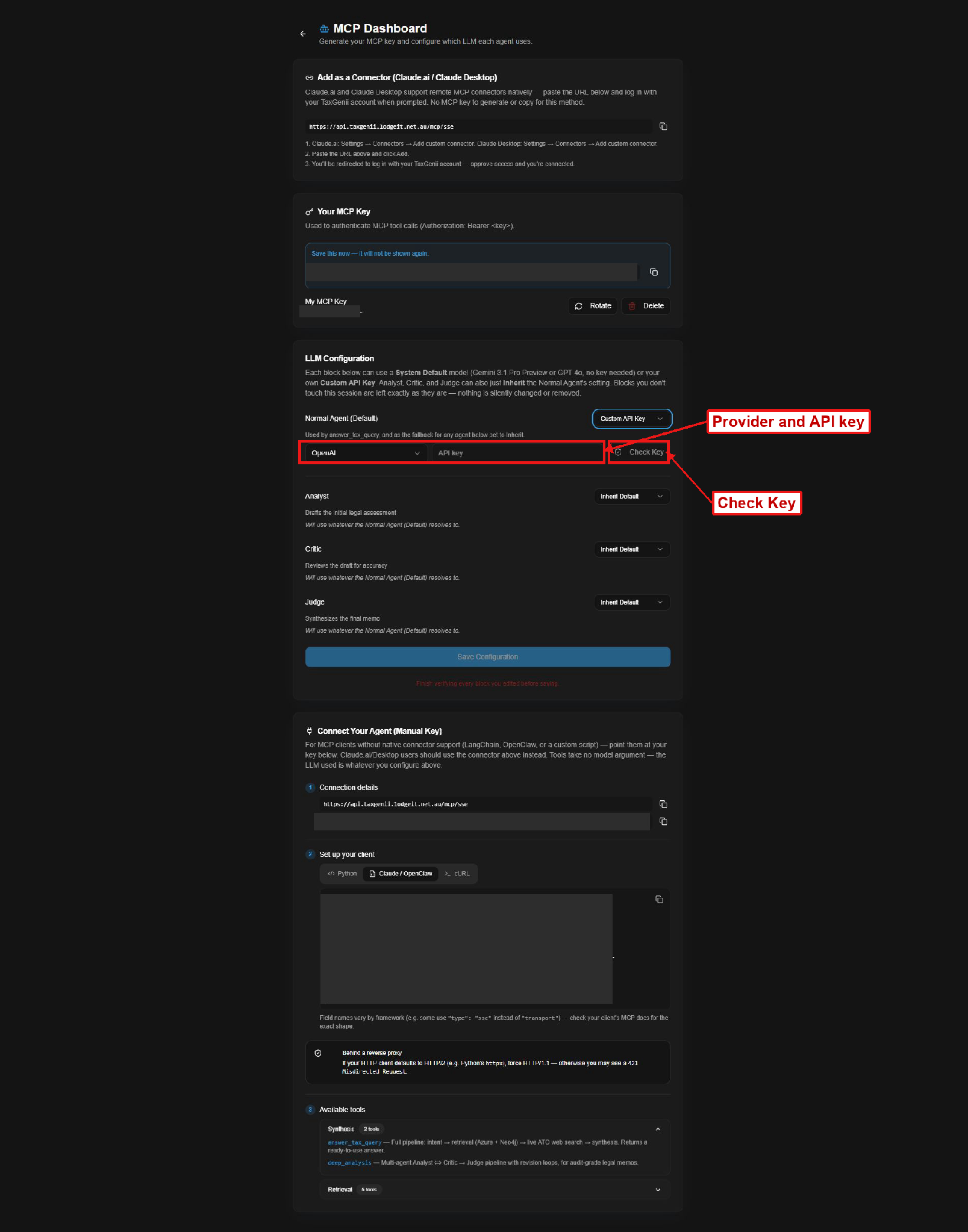
Figure 15 Select a provider and verify its API key
13 Manual Client Connection
For a client without native connector support, use the server URL and Authorization: Bearer <your MCP key>. Select Python, Claude / OpenClaw, or cURL to view the relevant example; copy icons copy the displayed values or code.
The JSON example is framework dependent. Claude Desktop users should follow the connector steps above. cURL opens the stream only; the Python SDK example demonstrates a tool call. The page advises HTTP/1.1 for clients behind its reverse proxy.
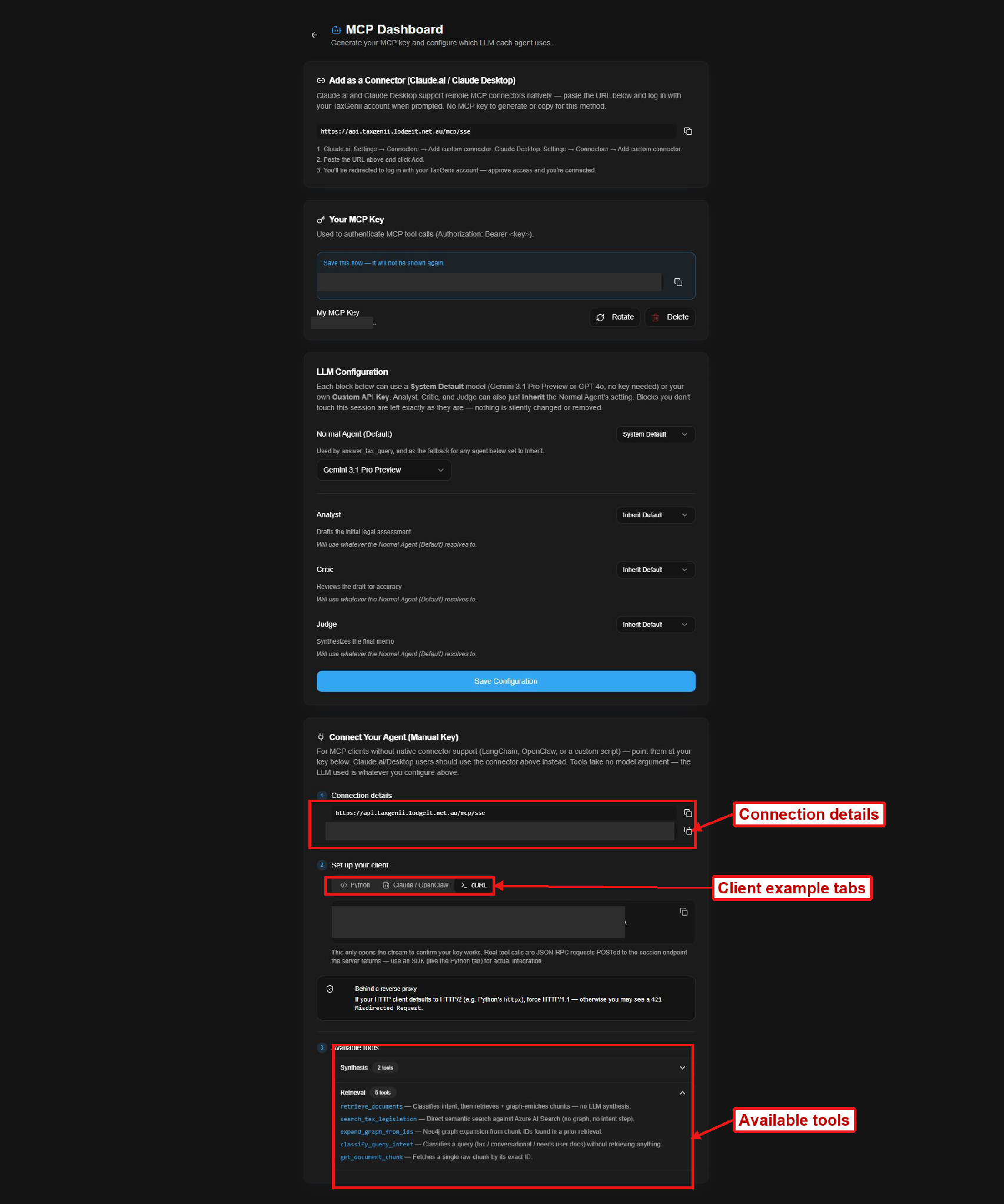
Figure 16 Manual connection details, example tabs, and tool groups
14 Available MCP Tools
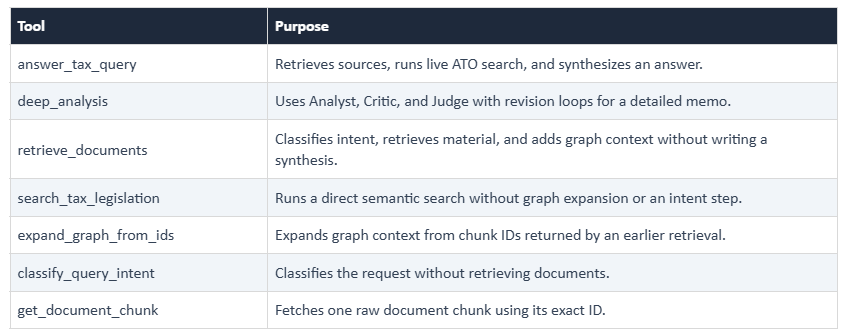
Expand Synthesis or Retrieval to see the tools. Ask Claude for the task you need; naming a tool explicitly can make the request clearer.
Guide Scope
The illustrated Claude Desktop walkthrough ends at Allow once. It does not demonstrate a completed Taxgenii tool response. Screenshots preserve their original surrounding view; unrelated chat and project names are blurred, and credential values are hidden.
*Interface checked on 12 October 2026. Labels and available models may change.
Was this article helpful?
That’s Great!
Thank you for your feedback
Sorry! We couldn't be helpful
Thank you for your feedback
Feedback sent
We appreciate your effort and will try to fix the article